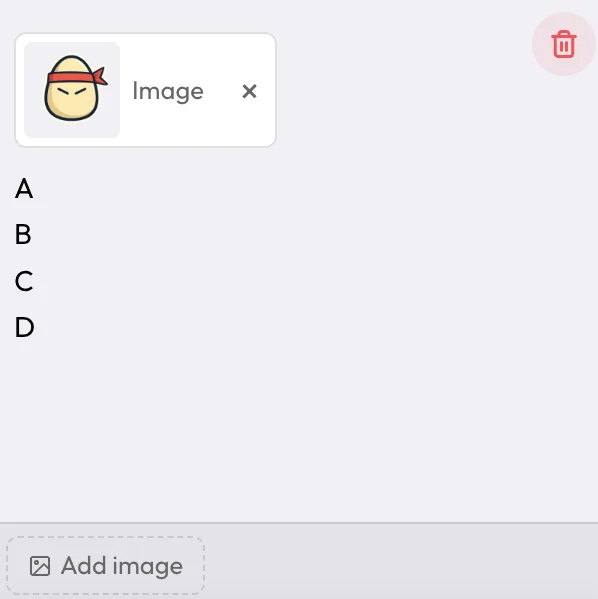
Most random pickers work with names. SpinAName works that way too, but you can also add images as their own entries and use it as a random image picker. Upload a product shot, a drawing, a character avatar — whatever you need. Every game mode treats image entries the same as name ones. Spin the wheel, flip a card, drop a gachapon ball — the result shows the image.
If you've been working around this by renaming images "Option A, Option B," you don't have to anymore.
What the image feature does
Name entries and image entries are separate. You add a name or you add an image — not both on the same entry. Both types live in the same list and work the same way in every game mode.
When an image entry wins, the winner screen shows it at a readable size. There's an expand button to open it full-size, which is useful when you're showing results to a group and want everyone to see it clearly.
Images are stored locally in your browser. Nothing you upload is sent to any server.
What you can use it for
Prize selection for giveaways. If you're running a giveaway with several different prizes, add a photo of each one and spin to assign them. The winner sees exactly what they've won on the reveal screen — no "prize A" ambiguity. The giveaway guide covers the full draw process if you want to run it transparently on a live stream.
Visual activities for class. Teachers working with early readers or language learners sometimes replace text entries with picture cards. A student spins the wheel, sees an image, and has to name it, describe it, or act on it. The random selection is handled; you handle the activity. More on this in the classroom guide.
Character or avatar draws. Assigning characters for a game night, roleplay session, or team activity? Add a portrait or avatar for each option and let the wheel pick. It reads faster than a name when you're projecting to a group.
Mystery selection. Add images but keep the context vague until the spin. Event themes, challenge assignments, surprise prizes — anything where the "what is it" is part of the moment lands better as a visual reveal than a text one.
Using it on stream
If you run a live stream, set up your image entries on the stream panel before you go live. Load your prizes as image entries and run the spin — your audience sees the image result on the overlay screen directly.
After the spin, the overlay shows an expand button on the winner card. Clicking it fills the overlay with the winning image, which reads clearly even on a lower-resolution stream.
The image feature is part of SpinAName with no account needed. Add your entries, attach your photos, and spin the same way you always would — the only difference is what appears when the result lands.