If you use a random picker like SpinAName regularly, you probably find yourself using the same groups of names over and over. A middle school teacher might have five different class periods to manage. A live streamer might have a recurring group of subscribers or moderators for giveaway draws. A project coordinator might lead daily standup meetings with the exact same group of software engineers.
Typing those names out manually every time is a waste of prep time. Even copying and pasting them from an external spreadsheet or text document becomes tedious, especially if you are running the draw from a tablet or mobile device where switching apps is clumsy.
To solve this everyday bottleneck, SpinAName includes a built-in Lists feature. This tool allows you to save your custom rosters directly in your web browser, ready to load in a single click. Here is a comprehensive look at how the feature works, how to use it, and how browser storage keeps your data fast, secure, and entirely private.
The Privacy Problem with Modern Web Tools
Many basic utility websites force you to register an account just to perform simple tasks. If you want to save a list of ten names, they ask for your email address, make you verify your inbox, and require you to create another password you will likely forget.
For many users—especially teachers and corporate team leads—this is not just a minor inconvenience; it is a security and compliance blocker:
- Student Data Privacy — In educational environments, uploading rosters of student names to external cloud servers can violate school policies or student privacy regulations.
- Corporate Security — Corporate teams must exercise caution when uploading employee names or project details to third-party databases.
- Account Fatigue — No one wants to manage another login credential just to spin a digital prize wheel.
SpinAName addresses these concerns by skipping the cloud entirely. Instead, it uses HTML5 Local Storage (commonly referred to as localStorage) to handle your saved lists.
Understanding Browser-Based Local Storage
When you save a list on SpinAName, the list data does not travel across the internet to a remote server. Instead, your web browser reserves a small, secure partition of memory on your physical device specifically for spinaname.com.
This client-side design offers three major benefits:
- Complete Privacy — Because your name lists never leave your device, they cannot be leaked from a server database or tracked by third parties. Your data remains yours.
- Instant Performance — Loading a list requires zero network requests. The browser reads the data locally from your hard drive, loading hundreds of names in milliseconds, even if you have no active internet connection.
- Frictionless Usage — The feature is active the moment you open the site. You do not need to log in to access your lists.
Step-by-Step: How to Save a List
Saving a list of names is simple. Follow these steps to save your first roster:
- Input Your Names — On the SpinAName homepage, type or paste your names into the entry area under the Participants tab. You can add them one per line, or separate them with commas or semicolons.
- Open the Lists Tab — Look at the right-hand sidebar panel (on desktop) or bottom panel (on mobile) and click the Lists tab.
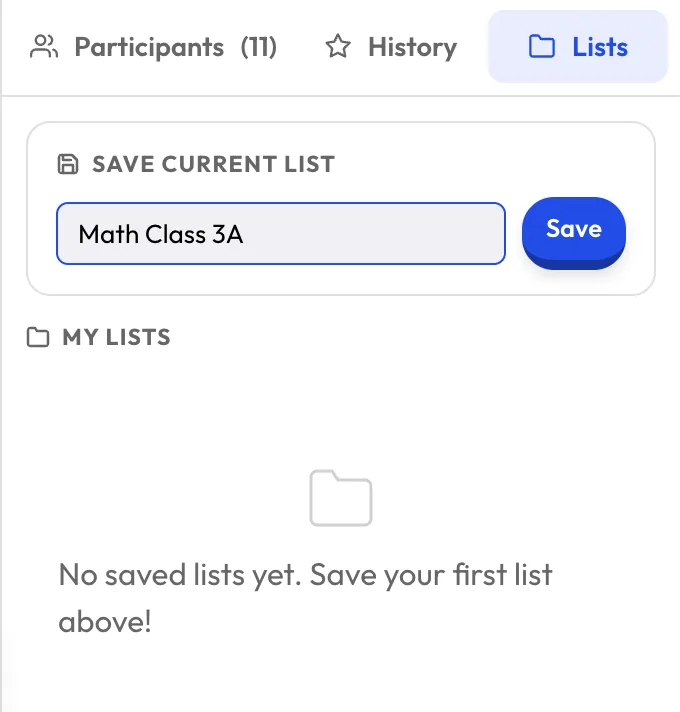
- Label Your List — In the input box under the Save current list heading, type a name for your roster. The label can be up to 40 characters long (e.g., "Math Class Period 3" or "Stream Subs").
- Save — Click the Save button or press the Enter key on your keyboard.
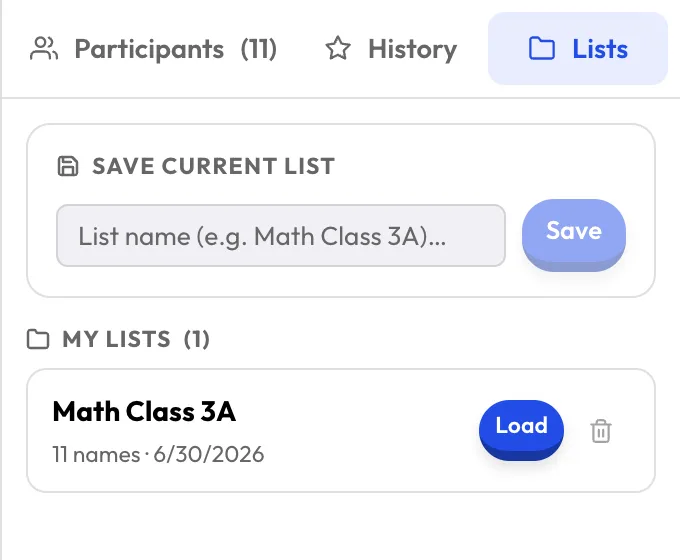
You will see a temporary "List saved!" pop-up notification, and your new list will immediately appear below in the My Lists section, showing the list name, the total number of names, and the exact date it was saved.
Loading, Updating, and Deleting Your Lists
Once you have built up a collection of saved lists, managing them from the sidebar is simple and quick.
Loading a List: To use a saved list, open the Lists tab, find your list in the catalog, and click Load. This action replaces whatever names are currently in your active participant box with the saved set.
Note: If you have unsaved names in your active list that you want to keep, make sure to save them as a new list before loading a different one, as the loading process overwrites the active participant panel.
Updating a List: Rosters change over time. To update an existing saved list, first load it, make your modifications in the Participants tab (adding new names or removing entries), return to the Lists tab, type a new name (or add a version code like "v2"), and click Save. You can then delete the old version.
Deleting a List: To prevent accidental data loss, clicking the trash can icon next to any saved list reveals a Confirm Delete prompt. Click it to permanently remove the list from your browser's memory, or click close to cancel.
Best Practices for Local Storage Lists
While browser-based storage is highly convenient, it has a few characteristics that you should keep in mind:
- Bound to the Device and Browser — Local storage is sandboxed. A list saved in Google Chrome on your school desktop will not be visible if you open Safari on your iPad or Chrome on your home computer. If you regularly switch devices, keep a master text file elsewhere so you can quickly paste and save. Alternatively, for live events, use our QR Session Guide to let participants register themselves.
- Beware of Browser Cleaning Tools — If you manually clear your browser's history and select "Clear cookies and other site data," or if you use third-party cleaner applications, your saved lists will be deleted.
- Browser Storage Eviction — Some mobile browsers (particularly Safari on iOS) may automatically evict local storage data for websites that have not been visited in 7 days to save space. To prevent this, bookmark SpinAName and visit the site regularly.
- Keep Backup Files — For critical, long-term lists, always maintain a backup text file elsewhere. Local storage is designed for quick convenience, not permanent database archiving.
What to Do After Loading Your List
Once your list is loaded, you are ready to pick a winner. Unlike basic spinners that only offer a spinning wheel, SpinAName provides five distinct visual modes to keep your selections interesting. You can toggle between them in the top menu without affecting your loaded list:
- Lucky Wheel — The classic carnival wheel, perfect for high-suspense draws.
- Mystery Cards — A grid of face-down cards that flip over to reveal names, offering a memory-game feel.
- Gachapon — A toy capsule machine that drops and cracks open a container to reveal the winner.
- Comedy Race — A side-scrolling racing game where name tags compete to cross the finish line.
- Scratch Ticket — A scratch-off surface that you click and drag to reveal the winning name.
To explore which format fits your event best, check out mode comparison guide for detailed ideas on matching game modes to classroom and streaming activities.